GitLab Integration Guide
This guide covers two things: setting up GitLab OAuth for user login, and integrating PixelCI into your GitLab CI pipeline.
Part 1: GitLab OAuth Setup
PixelCI uses GitLab as an OAuth provider for user authentication.
1. Create a GitLab OAuth Application
In your GitLab instance:
- Self-managed GitLab: Go to Admin > Applications
- GitLab.com: Go to User Settings > Applications
Fill in:
- Name:
PixelCI - Redirect URI:
https://<your-pixelci-domain>/login - Confidential: Yes
- Scopes:
openid,api
Save and note the Client ID and Client Secret.
2. Create a VCS Integration
On first launch, PixelCI shows an onboarding wizard that walks you through creating your first VCS integration. Enter your GitLab instance URL, Client ID, and Client Secret from step 1.
3. Log In
After creating the integration, click the GitLab login button to sign in.
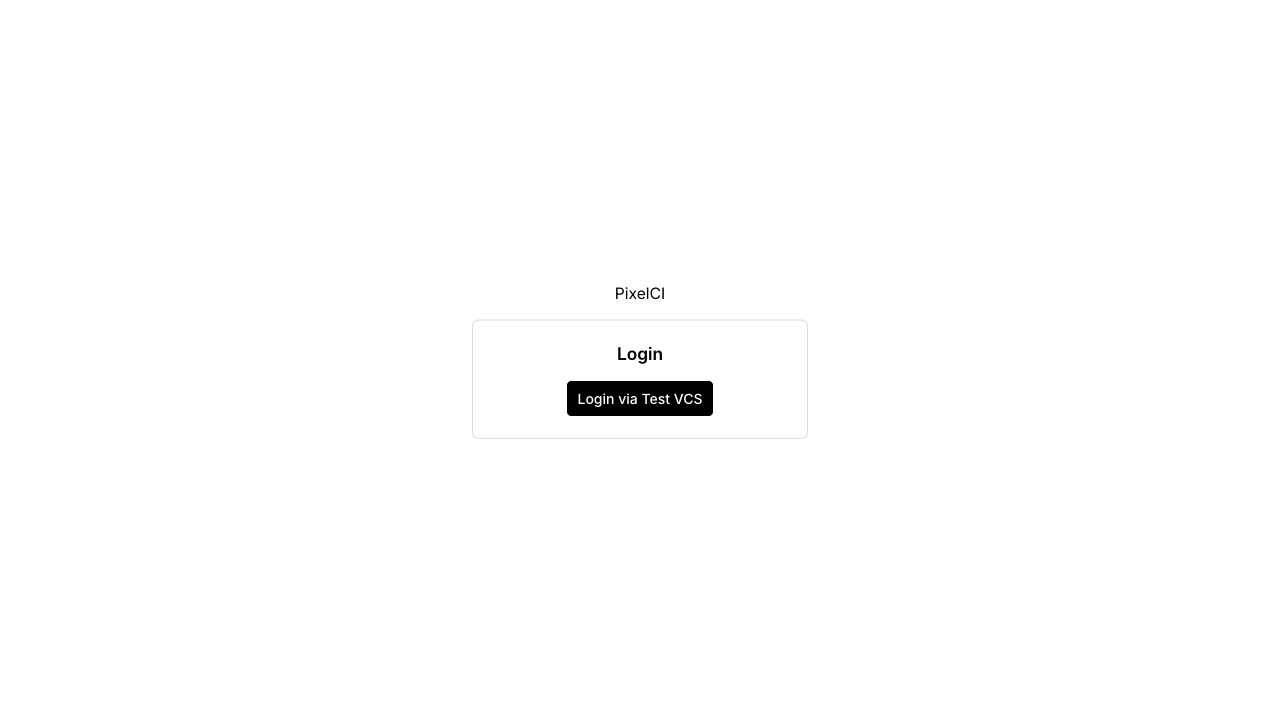
The first user to log in is automatically promoted to admin.
Part 2: CI Pipeline Integration
1. Create an App in PixelCI
In the PixelCI web UI, click Add App. Search for your GitLab project by name or paste its URL, then set the app name and default branch.
2. Add PixelCI to Your .gitlab-ci.yml
visual-regression:
    stage: test
    image: ghcr.io/zyno-io/pixelci/cli:latest
    variables:
        PIXELCI_API_URL: https://pixelci.example.com
        PIXELCI_APP_ID: <your-app-id>
        PIXELCI_IMAGES_PATH: ./path/to/screenshots
    script:
        - pixelci
You can find the app ID in the PixelCI web UI on the app settings page.
Authentication uses GitLab's built-in CI_JOB_TOKEN — no API keys needed.
3. CLI Environment Variables
| Variable | Required | Description |
|---|---|---|
PIXELCI_API_URL | Yes | URL to your PixelCI server |
PIXELCI_APP_ID | Yes | App ID from the PixelCI web UI |
PIXELCI_IMAGES_PATH | No | Path to screenshots directory (alternative to passing as argument) |
4. How It Works
The CLI uses GitLab CI's built-in CI_JOB_TOKEN and CI_PROJECT_URL environment variables to authenticate with the PixelCI API. The API validates the token directly with your GitLab instance on build creation and extracts branch/commit information from the job metadata.
No API keys or additional secrets are needed — just set PIXELCI_API_URL and PIXELCI_APP_ID.
The CLI then:
- Creates a build via the API (validates CI token against GitLab)
- Uploads all PNG files as screens
- Triggers build processing
- Polls for completion (5-minute timeout)
- Exits with code 0 (pass) or 1 (needs review), printing a direct link to the build in PixelCI
5. Screenshot Naming
PNG files are named by their relative path from the screenshots directory. The .png extension is stripped, and the rest of the path becomes the screen name:
| File path | Screen name |
|---|---|
login.png | login |
checkout/step-1.png | checkout/step-1 |
admin/users/list.png | admin/users/list |
6. Build Outcomes
| Exit code | Build status | Meaning |
|---|---|---|
0 | no changes | All screenshots match approved baselines |
0 | changes approved | Changes were previously approved |
1 | needs review | New changes require human approval in the UI |
When a build needs review, the CLI output includes a direct link to the build in PixelCI. After reviewing and approving the changes in the web UI, PixelCI automatically restarts the failed CI job via the GitLab API and redirects you to the pipeline page.
7. Running the CLI Outside GitLab
You can run the CLI manually with Docker, providing the required environment variables yourself:
docker run --rm \
  -v $(pwd)/screenshots:/screenshots \
  -e PIXELCI_API_URL=https://pixelci.example.com \
  -e PIXELCI_APP_ID=your-app-id \
  -e CI_PROJECT_URL=https://gitlab.example.com/group/project \
  -e CI_JOB_TOKEN=your-job-token \
  ghcr.io/zyno-io/pixelci/cli:latest \
  /screenshots